Models & Variants
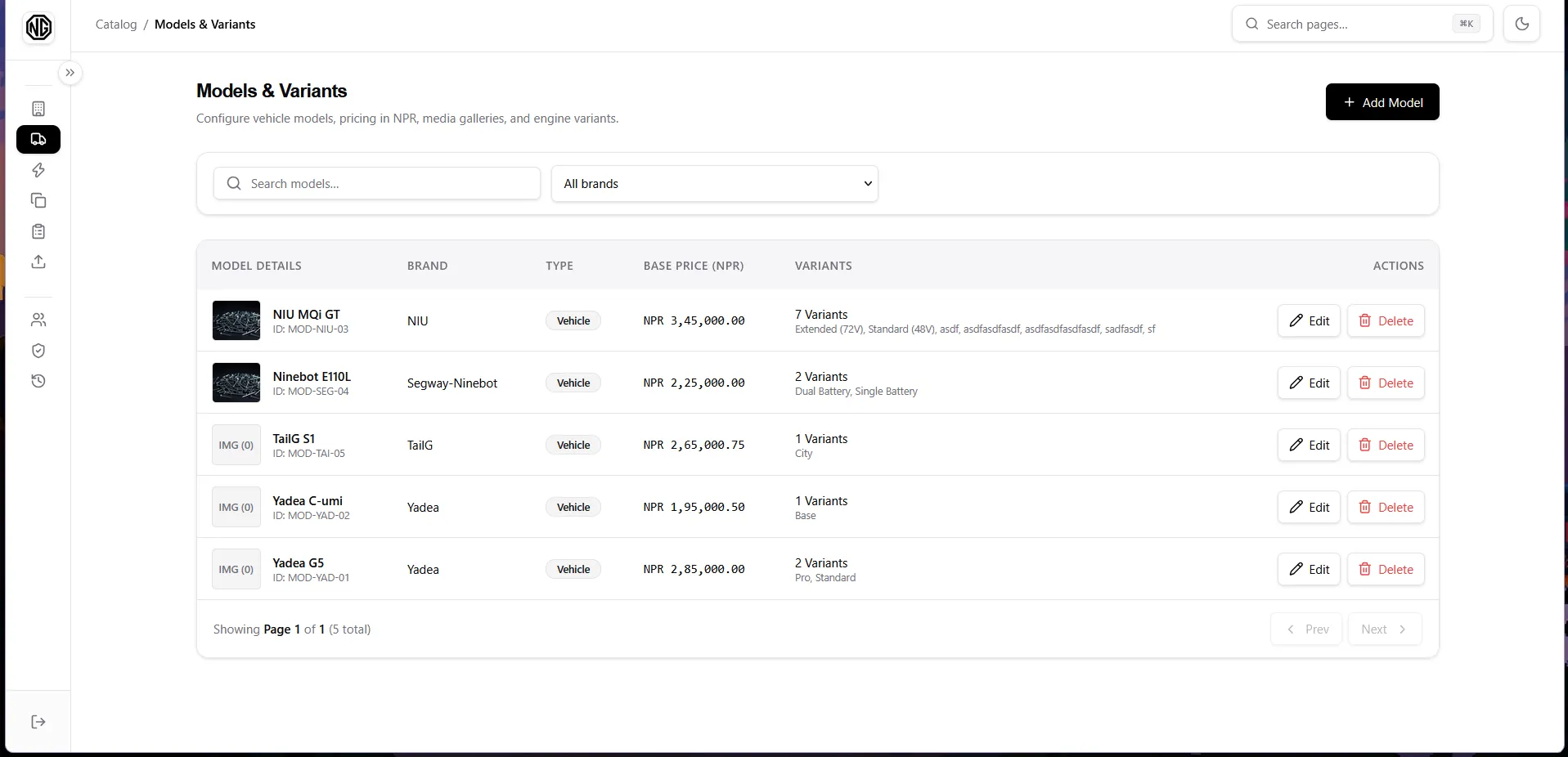
The table shows Model Details (photo, name, ID), Brand, Type, Base Price (NPR), Variants, and Actions. Use the search box and the brand filter to narrow the list; click a model name to open its detail page.
Fields
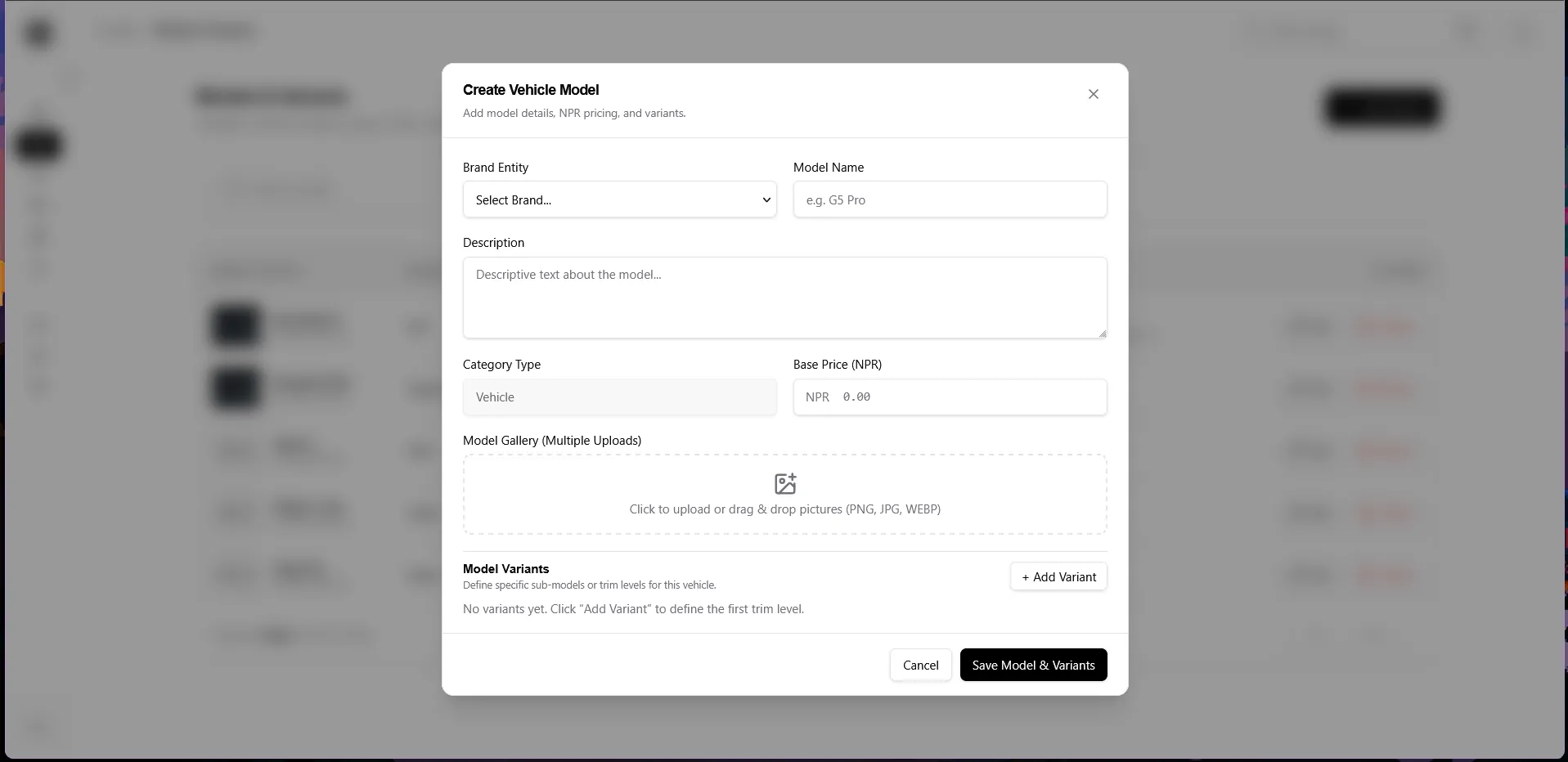
Section titled “Fields”| Field | Notes |
|---|---|
| Brand Entity | Owning brand. Model names must be unique within a brand. |
| Model Name * | e.g. G5 Pro. |
| Description | Descriptive text about the model. |
| Category Type | Fixed to Vehicle. |
| Base Price (NPR) | Numbers with decimals allowed, e.g. 125000.50. |
| Model Gallery | One or more pictures (PNG/JPG/WEBP, max 5 MB each). First picture is the Main picture; hover a new thumbnail and click × to drop it before saving. |
| Model Variants | “+ Add Variant” per trim/sub-model (e.g. Standard 48V). Every row needs a name; × removes the row. |
Add a model (variants and pictures in one go)
Section titled “Add a model (variants and pictures in one go)”- Click Add Model.
- Fill in brand, name, description, type, and base price.
- Model Gallery — click or drag-and-drop one or more pictures.
- Model Variants — click + Add Variant for each trim/sub-model and type its name.
- Click Save Model & Variants.
Edit a model
Section titled “Edit a model”- In the row, click Edit (same dialog, pre-filled, including saved variants).
- Change details, add more pictures, or rename/add/remove variant rows.
- Click Save Model & Variants.
Delete a model
Section titled “Delete a model”- In the row, click Delete and confirm. The model, its variants, and its pictures are removed.