Layout & Navigation
Sidebar navigation
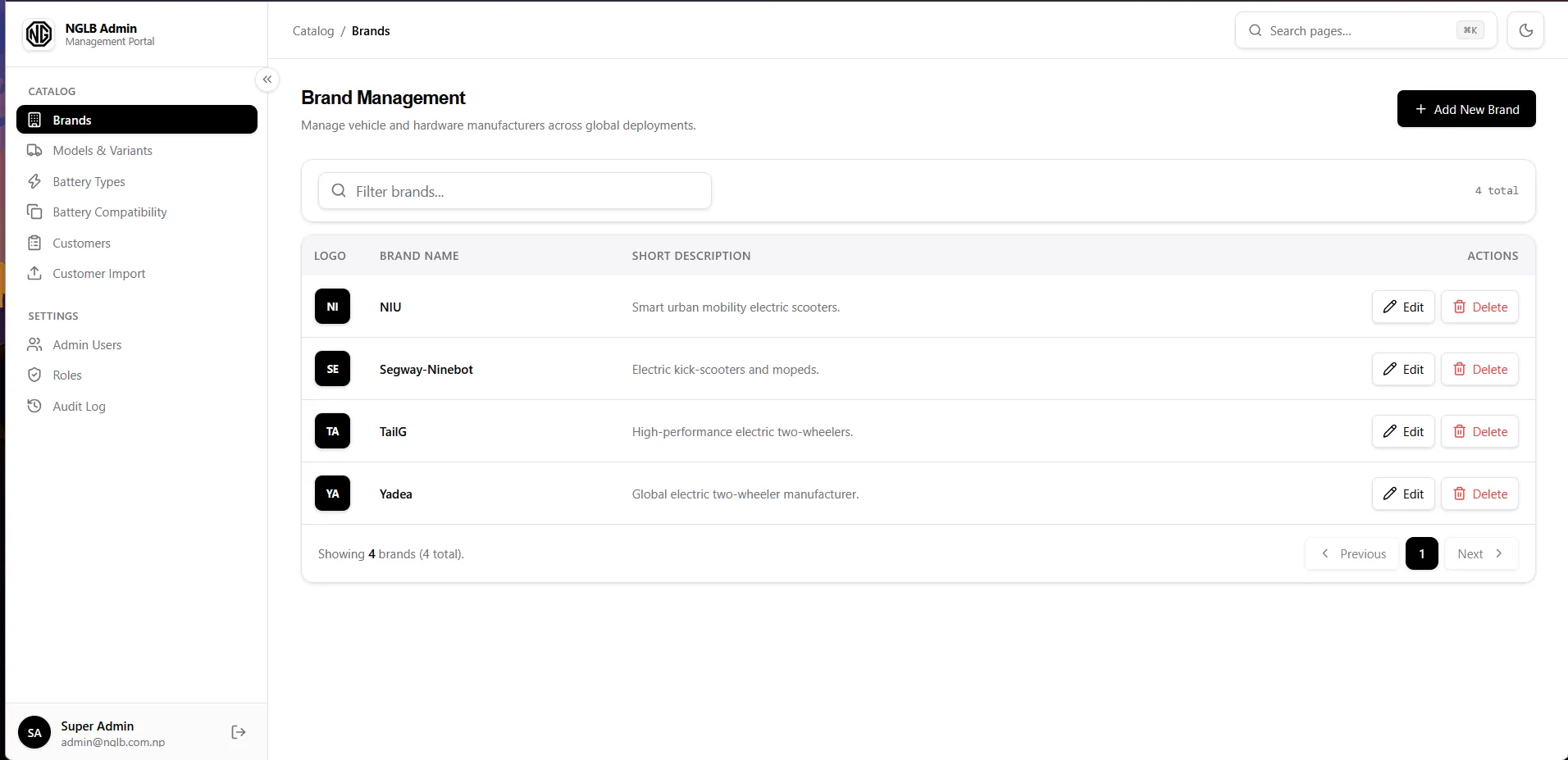
Section titled “Sidebar navigation”The left sidebar has two groups:
- Catalog: Brands, Models & Variants, Battery Types, Battery Compatibility, Customers, Customer Import
- Settings: Admin Users, Roles, Audit Log
Notes:
- You only see the pages your role permits. If a page is missing from your sidebar, you do not have its View permission — ask a Super Admin.
- The current page is highlighted in the sidebar.
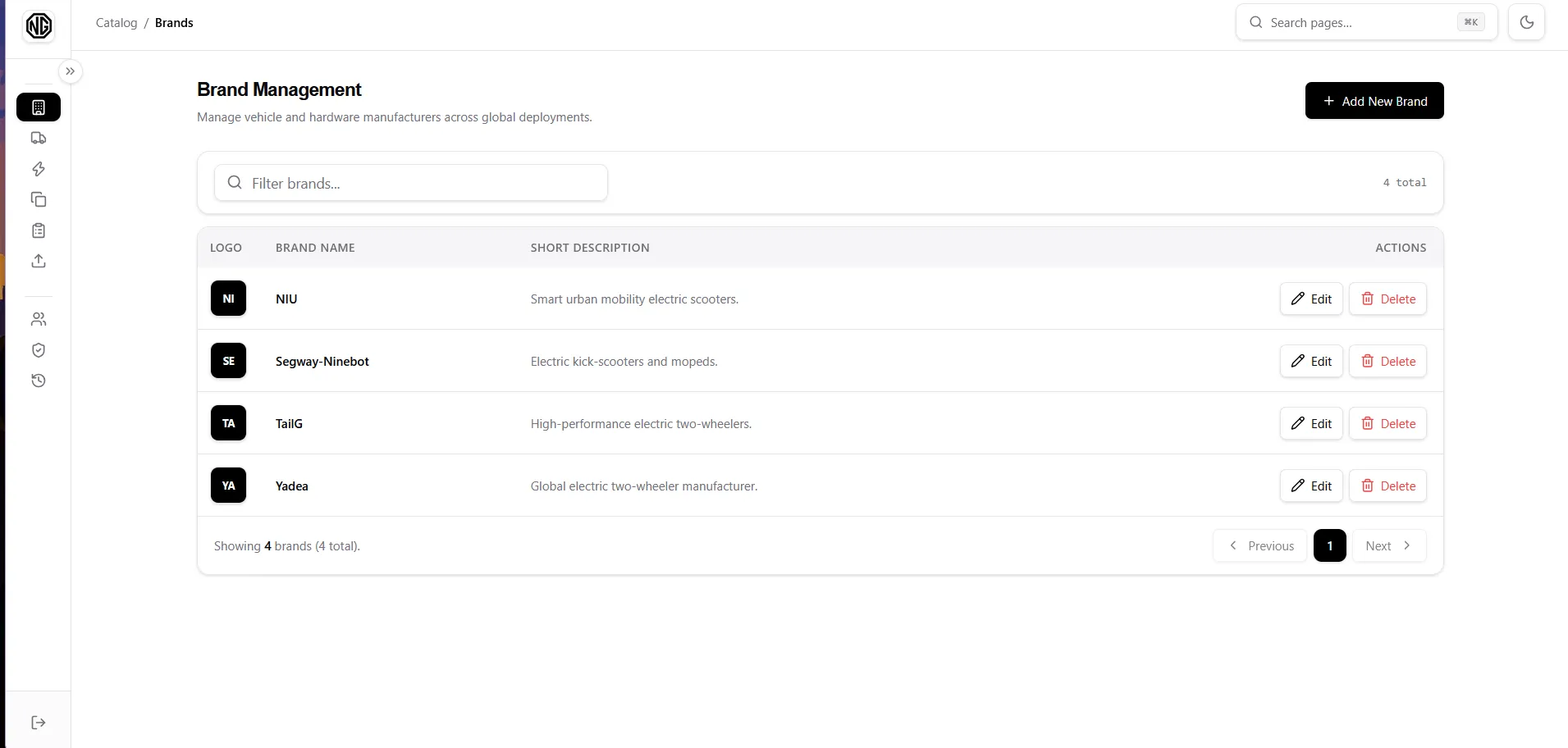
- Click the collapse/expand arrow on the sidebar edge to switch between the full sidebar (labels visible) and the narrow icon-only sidebar. Your choice is remembered on that computer.
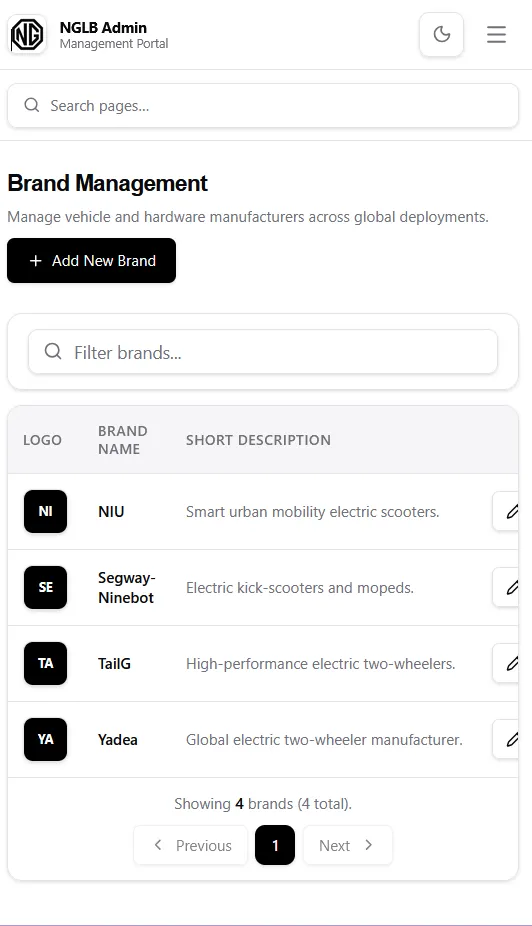
- On small screens the sidebar becomes a slide-in drawer: tap the menu (☰) button at the top to open it, tap outside (or navigate) to close it.
Top bar
Section titled “Top bar”The sticky bar at the top shows:
- Breadcrumbs — e.g.
Catalog / Brands— so you always know where you are. - Search pages… box (with
⌘Khint) — a global page finder. - Theme toggle (sun/moon) — switches light and dark mode.

Global search (⌘K)
Section titled “Global search (⌘K)”- Click Search pages… or press Ctrl+K (Windows) / ⌘K (Mac).
- Type part of a page name (e.g.
brand,audit). - Click the page (or press Enter) to go there.
- Press Esc to close without navigating.
Things that work the same everywhere
Section titled “Things that work the same everywhere”Lists: search, filter, pagination
Section titled “Lists: search, filter, pagination”- Search box — filters the list as you type (with a tiny delay). Changing the search resets to page 1.
- Filter dropdowns (where present, e.g. brand on Models, type on Customers, status on Customer Import) — narrow the list; also reset to page 1.
- Pagination footer — shows
Page X of Y (N total)with Prev / Next (and numbered pages on some lists). Buttons are disabled when there is nowhere to go.
Add / Edit dialogs
Section titled “Add / Edit dialogs”- Add … button (top-right of the page) opens a creation dialog.
- Edit button (in the row’s Actions) opens the same dialog pre-filled.
- Fields marked * are required. Problems are shown directly under the field and/or as a red box at the top of the form.
- Cancel closes without saving. Save / Create / Update submits; while saving the button shows Saving… and is disabled.
- Pressing Esc or clicking the backdrop closes the dialog (unsaved input is lost).
Delete confirmations
Section titled “Delete confirmations”- Delete buttons always ask for confirmation first, naming the item and warning about consequences (e.g. deleting a brand also removes its models).
- Click Delete in the confirmation to proceed, Cancel to back out. While working, buttons show Working… and are disabled.
Toast notifications
Section titled “Toast notifications”After most actions a small popup appears bottom-right: green check = success (e.g. Brand created.), red cross = failure with a reason. They disappear after a few seconds.
Permissions
Section titled “Permissions”Buttons and pages you are not allowed to use are hidden (not just disabled). If a colleague can do something you cannot, your role lacks that permission — see Roles.